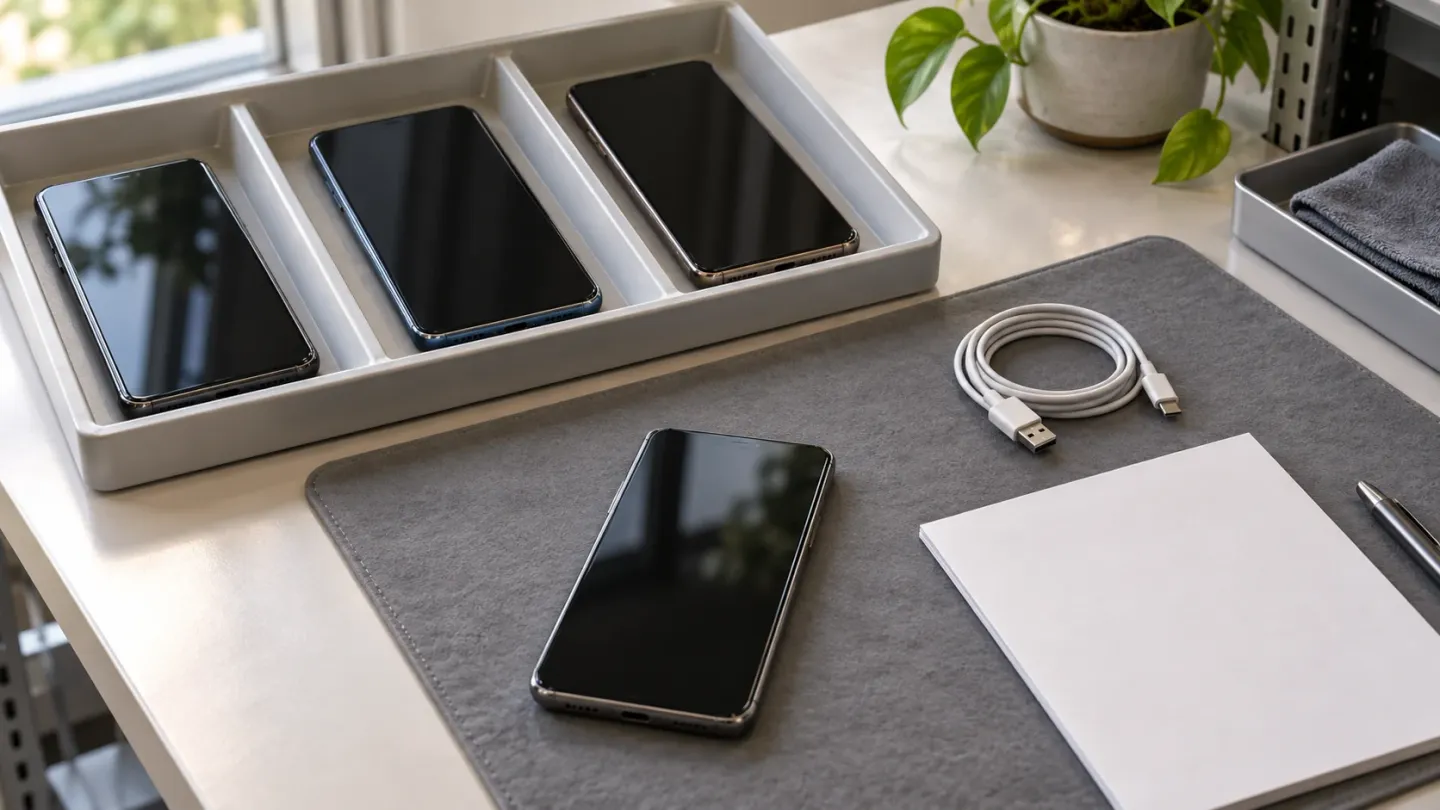
Android safe mode temporarily disables downloaded apps, making it useful during wholesale phone intake when a handset restarts, freezes or crashes. If the same symptom disappears under comparable conditions, investigate apps; if it persists, continue diagnosis before assigning a board fault.
Use the steps below on devices you are authorized to inspect, before app removal or a reset changes their received condition. Keep the result alongside the identity, lock, functional and cosmetic checks in the wholesale phone intake and diagnostic workflow.
- Confirm safe mode on the screen before recording a result.
- Compare the same observable symptom, activity and connection state.
- Treat an unavailable test or an unreproduced trigger as inconclusive.
- Verify any app-related fix in normal mode before completing intake.
What can Android safe mode tell an intake team?
It tests whether a symptom changes when downloaded apps are disabled. Google Android Help’s Find problem apps by rebooting to safe mode on Android identifies restarts, freezing, crashes and slow operation as reasons to try this comparison. Samsung’s Power on your Galaxy phone or tablet in Safe mode describes the same third-party-app isolation purpose.
For a returned handset, the useful question is specific: does the reported restart or freeze still occur when the available activity is repeated in safe mode? “The phone seems faster” is less useful than a recorded trigger and outcome.
Keep functional disposition separate from cosmetic grade. A clean housing does not resolve an intermittent crash, and a persistent crash alone does not identify a failed board component. The retest helps choose the next diagnostic step; the unit’s completed checks and the agreed grading rubric determine its disposition.
What should you record before restarting?
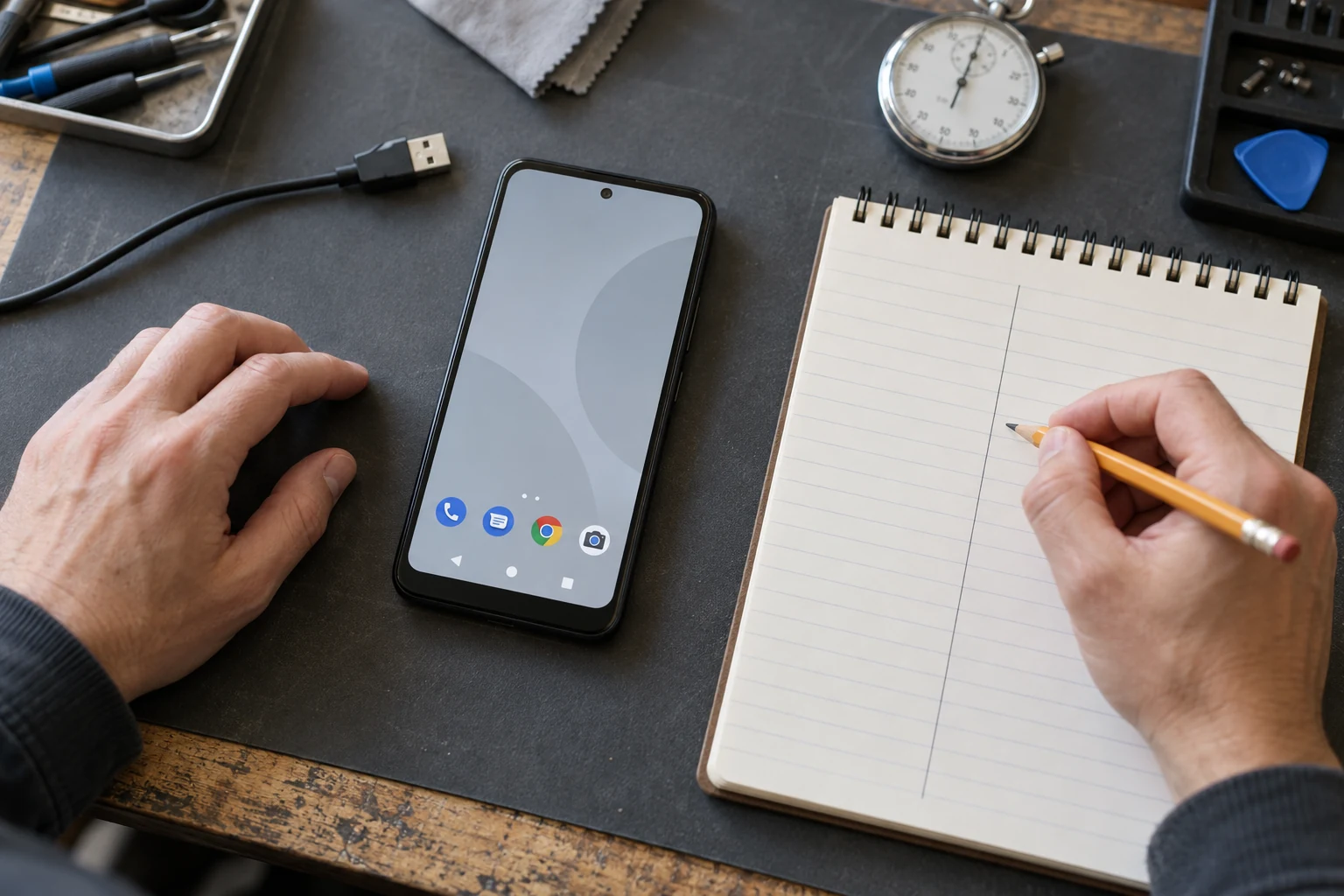
Capture the normal-mode baseline before changing apps, settings or accessories. This gives the next operator a repeatable comparison instead of a general “crashes” note.
Record the device identifier, model and Android version, then describe what happens: an app closes, the display freezes, the screen goes black, or the handset visibly restarts. Include the action immediately before it happens, the elapsed observation time, charging state, attached accessories and network state. Keep a reported symptom distinct from one you reproduced.
If inspection access is unavailable, record the access limit and route the device through the authorized intake process. Do not improvise account or screen-lock bypasses to complete this test. Preserve the receiving record before any authorized deletion or reset.
How do you enter and confirm safe mode?
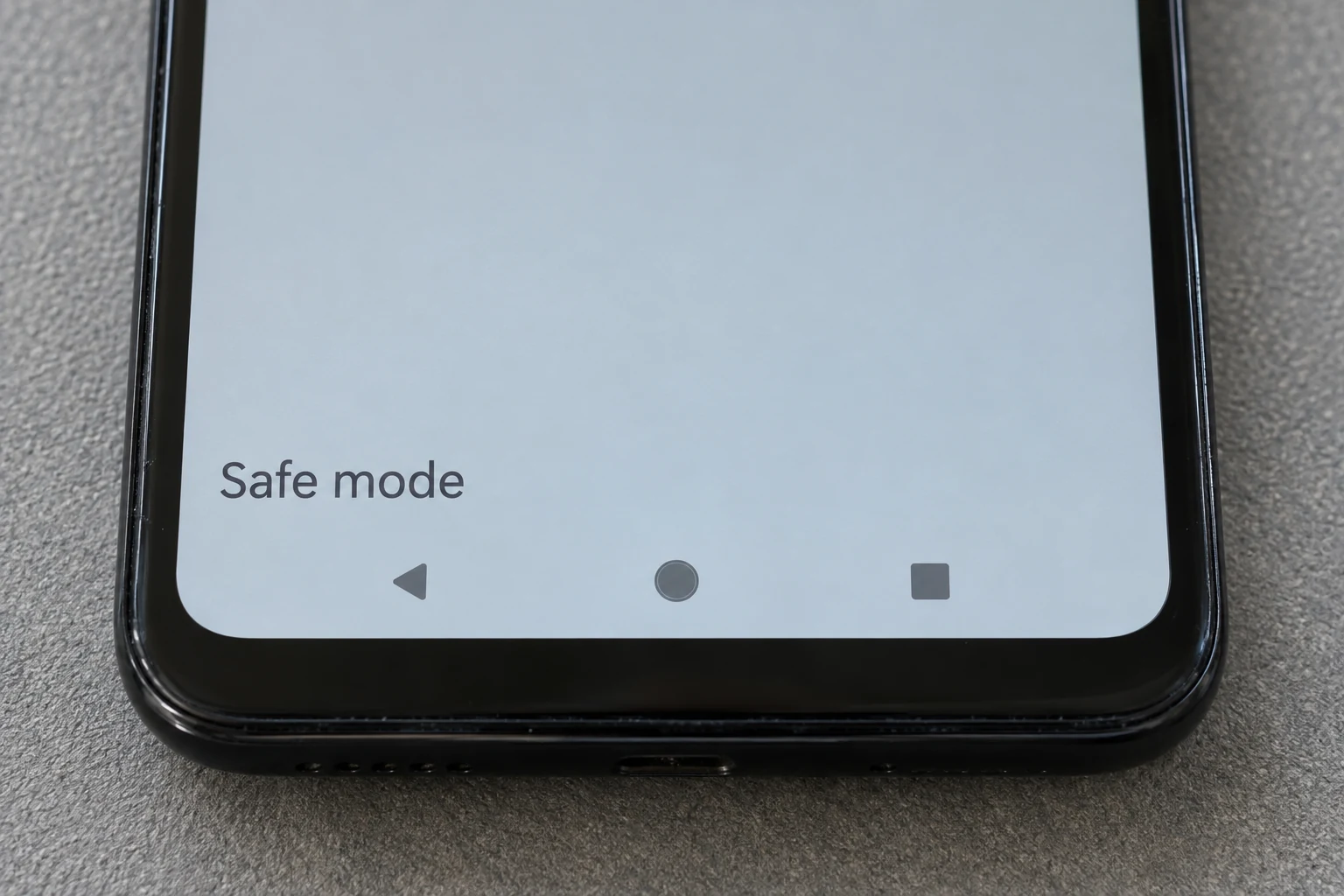
Use the procedure for the identified model, then look for the on-screen “Safe mode” label. Google notes that entry and exit vary by manufacturer. These examples follow Google Pixel Help and Samsung US support; they are not a universal button sequence for every Android phone.
Google Pixel: start from a powered-off phone
- Press the phone’s power button to start it.
- When the startup animation begins, press and hold Volume Down.
- Keep holding it until the animation ends and the phone starts in safe mode.
- Confirm “Safe mode” at the bottom of the screen.
Check connectivity before a Pixel retest. Google’s Pixel safe-mode instructions say airplane mode turns on automatically. Turn it off when the authorized test requires connectivity, and verify the Wi-Fi or cellular state needed for the activity. A failed call with airplane mode still enabled is not a comparable call test.
Samsung Galaxy: use the power menu
- Open the power menu. Samsung describes holding the Side and Volume Down buttons together, or using the Power icon in Quick settings.
- Touch and hold Power off.
- Tap Safe mode and let the device restart.
- Confirm “Safe mode” at the bottom left of the screen.
Samsung also documents a powered-off route: turn on the device, then hold Volume Down when the Samsung logo appears. Screens and settings can vary with model, software and carrier. If confirmation never appears, record safe mode as unconfirmed and check the model-specific instructions before interpreting the run.
How do you keep the retest comparable?
Repeat the available activity that exposed the symptom and record any changed conditions. This comparison is an intake procedure built around the OEM app-isolation test.
Keep the charging state, accessories and required connectivity consistent where practical. Record the actual observation window rather than treating one brief successful boot as a stability test. If you subsequently remove a case or change a setting, document that as a separate troubleshooting step so its effect remains distinguishable.
A downloaded app may be the only way to trigger the complaint. Because that app is disabled in safe mode, its absence prevents an equivalent test of that activity. Likewise, a downloaded diagnostic utility that cannot launch in safe mode has produced no hardware result. Continue the available system-level observations and mark the missing comparison as inconclusive.
| What happened in the comparison? | What the result supports | Next intake action |
|---|---|---|
| Normal-mode symptom was reproduced; it is absent in a comparable safe-mode run | A downloaded app is a likely cause | Investigate recent apps, then retest in normal mode after each authorized removal |
| The same symptom persists in confirmed safe mode | App isolation has not resolved the fault | Keep the fault open and continue model-specific software, settings, accessory and hardware diagnosis |
| The trigger is unavailable, conditions changed materially, or the symptom was never reproduced | The comparison is inconclusive | Record the limitation and arrange the missing test before release |
| Safe mode cannot be confirmed, or startup fails before a usable test | No valid safe-mode result | Record the observed startup stage and route for further diagnosis |
The app-likelihood interpretation follows Google Android and Pixel Help. The recorded dispositions above translate that guidance into a receiving workflow; they are not OEM grading categories.
What if the crash disappears in safe mode?
Investigate recently installed or updated apps, making one authorized change at a time. Google recommends removing recently downloaded apps individually and restarting normally after each removal to check whether the problem is resolved. Samsung directs attention to apps installed or updated around the time the problem began.
Record the app changed and repeat the original trigger in normal mode. Removing several apps together may restore operation, but it leaves the individual cause unresolved. A symptom that returns in normal mode also leaves the investigation open.
Once the original symptom is resolved under the recorded conditions, complete the remaining functional checks in normal mode. Safe-mode stability by itself is not a release decision: the phone still needs the other required intake results and a documented disposition.
What if the phone still crashes—or keeps returning to safe mode?
Keep the symptom unresolved and check the next plausible cause before assigning a board diagnosis. Google’s Fix a Pixel phone that’s restarting or crashing retains further troubleshooting paths for system updates, storage, settings and external accessories. Its advanced steps also include a factory reset, which removes device data and belongs in an authorized data-handling process.
Start with an observable check: remove external cases or battery packs as directed for the device, and check whether an accessory touches a button or covers a sensor. Record the change and its effect. This matters when the phone unexpectedly restarts or returns to safe mode: Volume Down is part of the documented startup entry sequence on the examples above, so button pressure is worth checking.
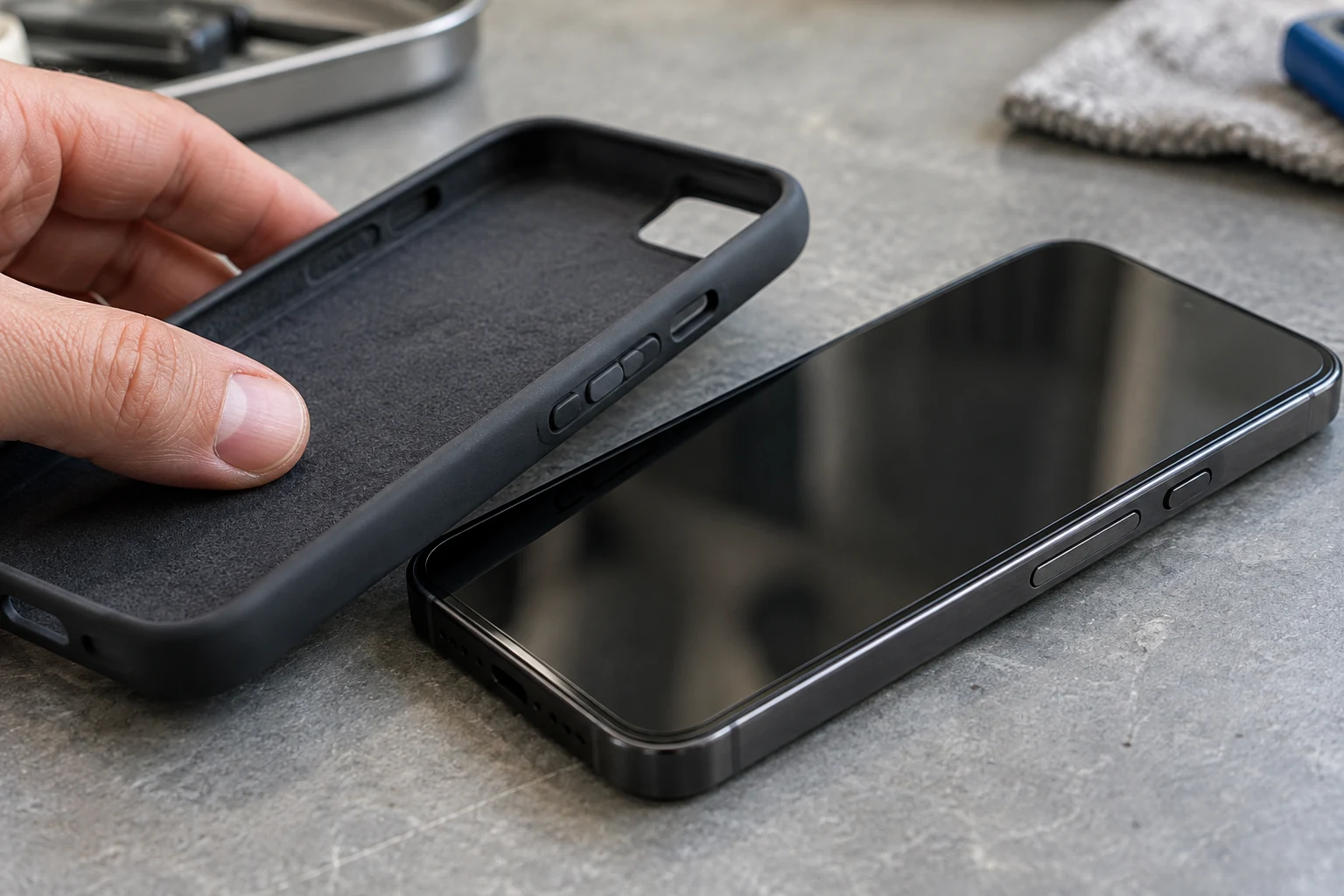
To exit safe mode, a normal restart usually works; use the manufacturer’s restart procedure for the model. Samsung also provides a Safe mode is on notification with a Turn off option. Confirm that the label has disappeared, then resume the normal-mode test.
If the same fault remains after the applicable troubleshooting, hand off the symptom record and completed steps for further diagnosis. A conclusion such as a power-management or baseband board fault needs its own diagnostic evidence. Put that diagnosis in a separate field from “symptom persists in safe mode.”
Copy a safe-mode retest and escalation record
Keep one record per device, with observations separate from diagnosis and release. Copy the fields below or download the blank CSV retest record for your intake worksheet. Complete the baseline and safe-mode sections before recording a corrective action.
| Record section | Fields to capture |
|---|---|
| Device and access | Device identifier; model; Android version; operator/date; authorized inspection access |
| Normal-mode baseline | Reported symptom; observed symptom; trigger; observation duration; charging/accessory state; network state |
| Safe-mode confirmation | Entry method; label observed; confirmation evidence reference |
| Safe-mode comparison | Activity performed; actual duration; connectivity; changed conditions; symptom present, absent or inconclusive |
| App or accessory action | Authorized change; app/accessory involved; date; effect observed |
| Normal-mode verification | Exit confirmed; original trigger repeated; duration; symptom result; remaining intake checks |
| Escalation and disposition | Unresolved observation; next test/owner; separately confirmed diagnosis and evidence; hold or release decision |
Use the completed record with the parent intake and diagnostic workflow to keep safe-mode testing connected to the unit’s full receiving history. Browse the wholesale-phone guides for related intake and grading topics.
Technical references
The manufacturer instructions used here are Google Android Help, Find problem apps by rebooting to safe mode on Android (article 7665064); Google Pixel Help, Find problem apps by rebooting to safe mode (article 2852139) and Fix a Pixel phone that’s restarting or crashing (article 4582729); and Samsung US Support, Power on your Galaxy phone or tablet in Safe mode (ANS10003495). Guidance checked October 27, 2026.
Image disclosure: AI-generated illustrations.
Frequently asked questions
Can a downloaded diagnostic app run in Android safe mode?
Safe mode temporarily disables downloaded apps, so a downloaded diagnostic tool may be unavailable. Record that test as unavailable in this mode, then run the supported diagnostic suite after restarting normally. A tool that cannot run has not returned a hardware failure.
Will safe mode wipe the phone before intake testing?
Entering safe mode temporarily disables downloaded apps; it is different from a factory reset. Some home-screen widgets or customizations can change. Uninstalling apps and resetting the device are separate actions that require the appropriate data-handling authorization.
How long should a safe-mode retest last?
Use an observation window suited to the reported trigger and record its actual duration. A short idle check cannot settle a fault reported during a different activity or after a longer interval. If the trigger cannot be reproduced, retain an inconclusive result.
Sources
- Wholesale Phone Intake & Diagnostic Workflow Guide — Kondor Phone Accessed October 27, 2026.