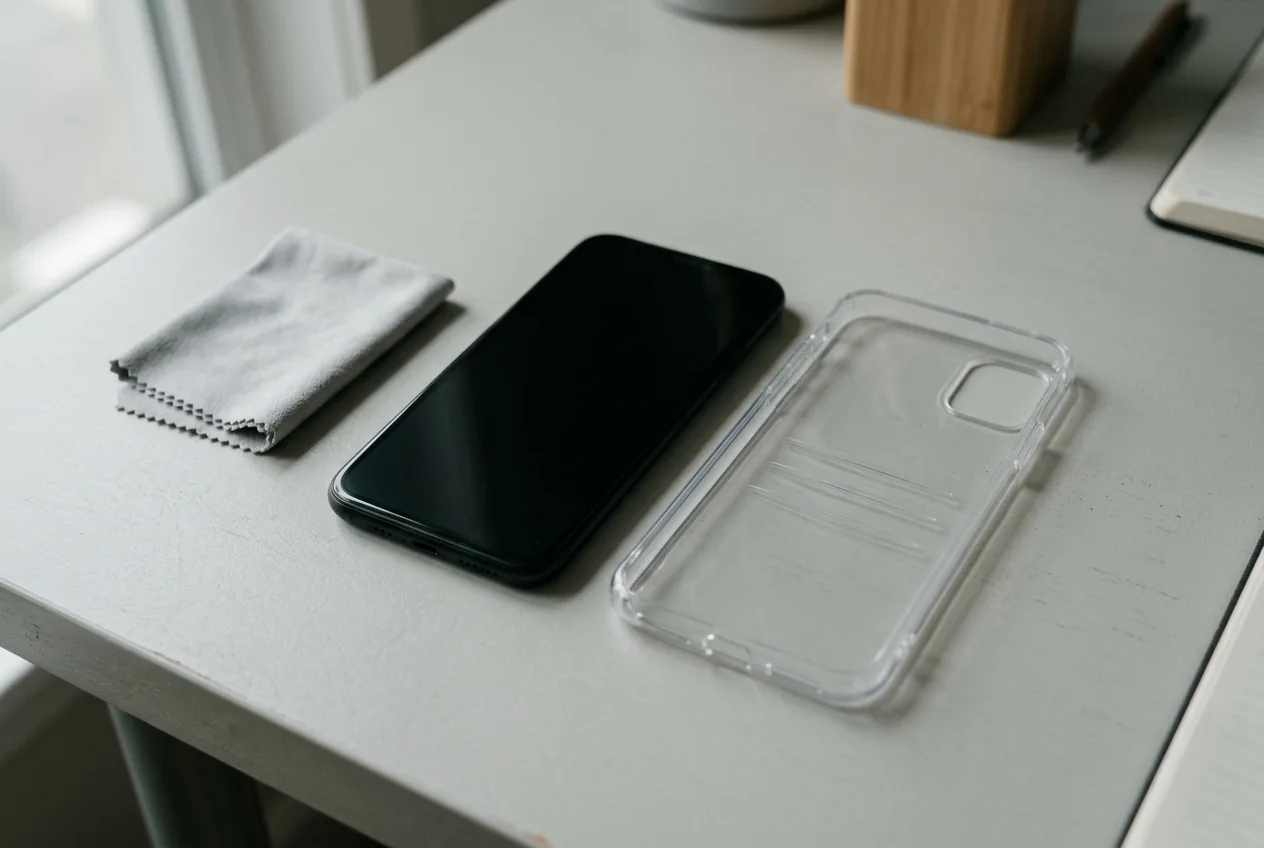
A call screen that stays awake can cause accidental touches, but rejecting the handset before recording the call route can hide the actual conditions. If the proximity sensor is not working while calling, first record whether the call uses the receiver, speakerphone, or Bluetooth, then repeat the check with accessories removed and the front glass clean.
This guide helps used-phone receivers keep observations separate from a hardware diagnosis. The documented checks below concern Samsung Galaxy phones; for another manufacturer, confirm the model’s own instructions before transferring the expected behavior. There is no optical-offset adjustment or gyro-zeroing procedure here.
Start with a call-mode comparison
Do not combine a receiver call and a speakerphone call into one result. Samsung’s proximity guidance says the screen turns off near the ear and unlocks when unblocked. It describes proximity sensing as deactivated during speakerphone or Bluetooth-earphone calls. That exception is a reason to record the route before calling an awake display a fault.
The matrix is an editorial recording method. It sets no timing or distance threshold and does not certify the handset.
| Comparison | Keep in the record | What the comparison can establish |
|---|---|---|
| Receiver call, speakerphone off, Bluetooth disconnected | Call app, route, screen near the ear, screen after moving away | What the screen did in the intended receiver-call condition |
| Speakerphone call | Speakerphone on; screen observation | A separate call mode; do not count this alone as failed proximity sensing under the Samsung guidance |
| Bluetooth-earphone call | Connected audio device and screen observation | A separate route; repeat through the receiver before judging proximity behavior |
| Same receiver call before and after accessory removal | Case, film, or protector present/removed; each observation | Whether behavior differed under the changed conditions |
| OEM diagnostic, where available | Exact test name, instructions followed, displayed result | The result of that test, separate from the call observation |
Use a call you can end without relying on the affected screen. Write the symptom precisely: “stays lit near the ear,” “stays dark after moving away,” or “wakes during the conversation.” Record an intermittent event even if the next attempt looks normal. A blank row means the condition was not checked.
If audio is also unclear, use the separate receiver and loudspeaker record. A sound observation does not fill the screen-behavior field.
Change one condition and repeat
Samsung recommends current software and apps, gentle cleaning with a soft cloth, accessory removal, and a restart after the call. Its page identifies screen protectors and other accessories as possible interference, and says sensor position varies by model. Use the manufacturer’s location information for the unit in front of you rather than assuming a visible opening marks the sensor.
For a useful intake comparison, take the following notes in order. This order is our suggested recordkeeping sequence, not a Samsung test standard.
- Record the original state. Write the model, OS build, call app, route, and fitted accessories before changing anything. Describe the screen behavior during the call and after moving the phone away.
- Remove an accessory and repeat the same call condition. Record exactly what changed. If several items were removed together, the result cannot distinguish which item mattered. Do not call the sensor repaired from this observation alone.
- Clean the front gently and repeat. Write that cleaning occurred before the new observation. Keep the original result on the sheet.
- Restart off-call and record the retest. If software is updated, save the new build and a new observation rather than overwriting the earlier one.
For a screen that does not turn on during or after calls, Samsung also lists disabling “Double tap to turn on screen” as a troubleshooting check. Record its prior state if you follow that model’s guidance. Treat the change as another retest condition, not a universal fix.
Run the diagnostic the phone actually offers
Samsung’s US diagnostic instructions describe Samsung Members diagnostics from the Discover or Support tab, then Phone diagnostics. Tests and menus vary with the model and software; follow the displayed steps and copy the actual test name and result.
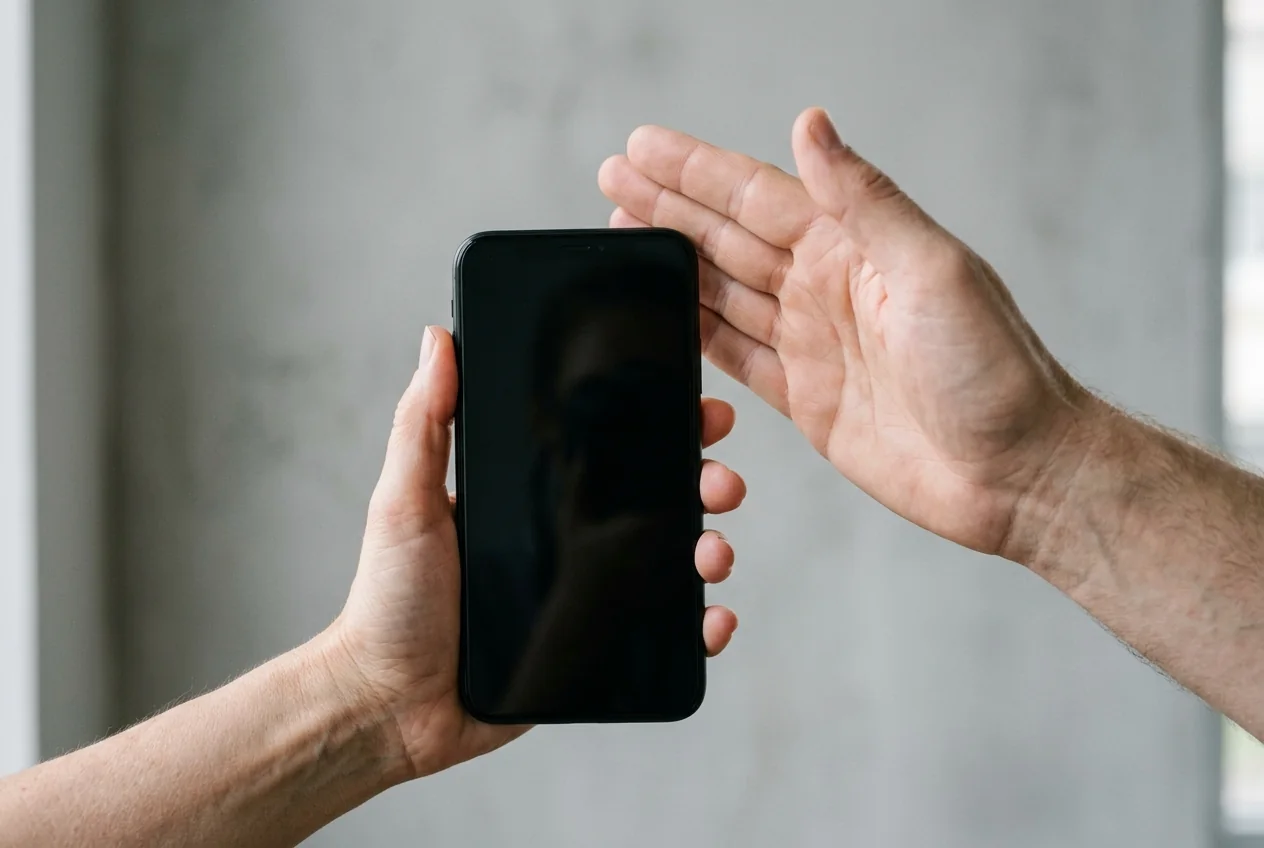
The older Pakistan proximity page calls its test “Proximity recognition” and describes holding palms close to, without touching, the screen’s top. Follow the unit’s current prompts rather than forcing an older menu path. If no relevant test appears, record “Not offered on this unit.” A missing menu is not a failed sensor result.
Keep the diagnostic and call observations in separate fields. For example, if the diagnostic passes while the receiver-call symptom recurs, retain both entries and mark the discrepancy for assessment. Do not silently replace the call result with the app’s pass message.
After a screen replacement, record the history without guessing the cause
If the symptom was first noticed after a display replacement, add the reported repair date and available repair record to the sheet. Label an owner’s statement as reported history. The sequence of events belongs in the record; it does not identify a damaged component or prove that an offset must be rewritten.
Repeat the documented call and accessory conditions, save the OEM result where available, and refer unresolved behavior with those notes. Leave the component diagnosis and any model-specific repair or calibration operation to the relevant service procedure. Hardware offset calibration and component replacement require model-specific OEM service tools.
Use the blank record to decide what remains unresolved
Download the blank proximity-call intake record (CSV). It has one row per observation so you can preserve the before-and-after history. It contains no sample readings or prefilled pass results.
| Unit field | Entry to make |
|---|---|
| Internal unit reference, model, OS build, date | Your actual unit and session details |
| Call app and audio route | Receiver, speakerphone, Bluetooth, or another observed route |
| Accessories and cleaning state | What was fitted, removed, or cleaned for this observation |
| Screen near the ear / after moving away | Observed behavior, or “Not checked” |
| OEM test name / result | Copy from the unit; leave unsupported details blank |
| Repair history and source | Documented record, reported history, or unknown |
| Next action | Complete missing check, retest, or hold for assessment |
Use these editorial decision boundaries when reviewing the sheet:
- Only speakerphone or Bluetooth was checked: the receiver-call observation is still missing. Complete it before recording a proximity fault.
- Behavior changed after accessory removal or cleaning: preserve both results and describe the changed condition. Repeat with the configuration intended for the unit’s next use.
- The same receiver-call symptom remains, or the OEM test reports a problem: hold this check for assessment and send the observation history with the unit. Record the fault as unresolved rather than naming a replacement part.
- The OEM test and the call disagree: retain the disagreement and refer it; neither entry should erase the other.
- The intended receiver-call condition behaves as expected: record that limited observation. Acceptance of the whole phone still needs the other checks in the phone intake and diagnostic workflow.
Method and sources
Updated October 2026. This guide synthesizes the two linked Samsung support pages: the Pakistan support guide (updated November 22, 2022) for historical menu examples and the US diagnostic guidance for current Samsung Members checks. Regional instructions and supported diagnostic tests can differ across firmware builds; verify the active path on the unit under test.
Sources
- The proximity sensor is not working properly — Samsung Pakistan Accessed October 15, 2026.
- Check your Samsung Galaxy device status and run diagnostics — Samsung US Accessed October 15, 2026.