Direct answer
Screen a handset with physical touch across the accessible test area, separate edge checks, simultaneous-contact tracking and a hands-off observation. Save the test conditions and exceptions against the device record. Automated event logging can assist this process; injected software taps and a completed-looking grid do not establish that every part of the digitizer responds.
Key takeaways
- Record the tested area and actual contact method before interpreting a grid.
- An unvisited cell is untested; a repeatable trace interruption warrants a retest or hold.
- Follow each active contact independently during multi-touch checks.
- Keep touch screening separate from a confirmed hardware diagnosis and cosmetic grade.
Missing a touch gap risks releasing a handset with a functional problem hidden behind an acceptable cosmetic grade. Test the touchscreen digitizer with recorded physical grid sweeps, edge checks and multi-touch observations before treating its touch function as screened.
This guide is for used-phone intake personnel who need an attributable result, rather than an app recommendation. It proposes a way to record sampled coverage and investigate blind spots. It does not diagnose an internal crack or set a universal acceptance limit. Place the result alongside the other checks in the phone intake and diagnostic workflow.
Define the test boundary before starting
Record where the test can receive input and under what conditions. A result applies to that area and setup; phone glass outside an app’s input area has not been checked by that app.
| Input or item | Value or source to record | Why it matters |
|---|---|---|
| Handset identity | Observed identifier and internal asset record | Keeps the result attached to the physical unit |
| Software and platform | Actual model, OS and diagnostic app/version | Defines the setup being evaluated |
| Test area | Input canvas, orientation and excluded regions | Prevents hidden or inaccessible areas becoming assumed passes |
| Contact method | Finger input or documented physical fixture | Separates physical screening from injected UI events |
| Screen condition | Case, protector, visible damage and cleanliness | Makes changed conditions visible in a retest |
| Cable state | Disconnected or the actual accessory used | Helps compare an accessory-related symptom |
| Acceptance rule | Your written procedure and unresolved-test policy | Gives the operator a disposition for incomplete evidence |
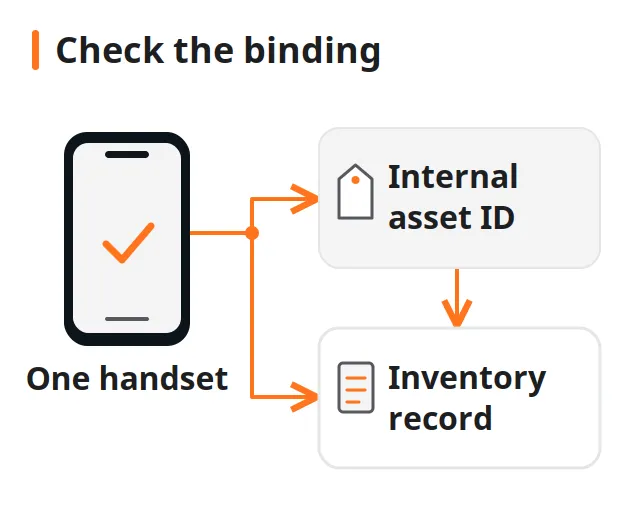
Use the device-to-record binding procedure before capturing the result. A trace with an uncertain device association is not ready for a per-unit decision.
Apple’s support guidance recommends restarting, keeping the screen clean and free of water or debris, disconnecting accessories, and removing cases or protectors when touch is intermittent. Google’s Pixel guidance also distinguishes problems confined to an app and suggests checking screen conditions. Apply the relevant device’s instructions and record any change; do not silently discard the original complaint.
Inspect the unit through your existing authorized handling process first. The receiving and tally protocol addresses shipment observations; this screen procedure is a later functional check.
Takeaway: A useful test record identifies the handset, input area, contact method and screen conditions.
Mark sampled grid coverage without filling gaps
A grid can summarize observed coordinates, but its cells are a reporting device rather than proof that every point responded. The following coverage rules are an editorial proposal for reviewing diagnostic software or specifying a logging workflow.
Android’s MotionEvent documentation describes pointer coordinates and batched historical samples. A logger can use those reported samples to show where input arrived at the application. Ask the software provider whether the exported report retains samples, shows only a painted trace, or supplies a more limited completion indicator.
For this proposed method, count only samples associated with the intended physical contact during the active contact sequence. Record the event source, tool type and action where the logger exposes them, along with the actual operator or fixture action. Keep hover, scroll, unknown-source and injected input outside the physical-coverage set. Source and tool fields alone do not prove that an event was physical. If the export lacks this context, record the verification limit; a cancellation event is not a new contact sample.
Suggested mapping rules:
- Define the input canvas with its top-left as the origin. Record its positive width
W, positive heightH, and positive integer row and column counts. Keep excluded regions outside the stated scope. AndroidgetXandgetYare in the receiving View’s coordinate space; if the canvas is inside that View, apply and record the conversion to canvas coordinates first. - As a suggested half-open boundary convention, accept coordinates satisfying
0 ≤ x < Wand0 ≤ y < H, then usecolumn = floor(x × columns / W)androw = floor(y × rows / H). Here,floormeans round down to an integer; indices start at zero. This is an editorial mapping rule, not an Android acceptance standard. Reject out-of-bounds and excluded-area samples from the coverage set; do not clamp them to an edge cell. Start a separate map if the canvas position, size or orientation changes. - Preserve the sample sequence and contact identity. For Android logs, consume available historical coordinates in chronological order before current coordinates, as the API documentation describes.
- Mark cells that contain recorded samples as visited. Leave cells without samples unvisited. A visited cell means that at least a sampled position inside it received input, not that its whole surface has been proven responsive.
- Keep a drawn connecting line separate from sampled evidence. Do not count cells as tested solely because a renderer drew a line between distant samples, across a release, or across a canceled gesture.
- Save interruptions, excluded regions and operator observations alongside the coverage view. Return to suspicious regions with a deliberate physical sweep.
A coarse grid can conceal a small untested area inside a visited cell. A finer grid can also leave cells empty simply because the operator never crossed them. Define the cell dimensions, touch detection sensitivity, and pass/fail coverage thresholds in your station SOP and retain them with the result.
Common mistake: A fully coloured grid is accepted without checking what caused each cell to change colour. Ask whether it represents actual samples, interpolated lines or an operator confirmation.
Android’s Instrumentation.sendPointerSync dispatches an injected pointer event into an application window. That can exercise software behaviour, but the API action itself is not a physical touch on the glass. For automated touch panel testing software, identify which parts are automated: prompting, logging and scoring, physical contact, or only UI-event injection. Do not accept a synthetic-event script as evidence of physical digitizer coverage.
The lot-reading guide helps clarify what a seller’s “tested” description includes. Request the stated method and its scope rather than translating that word into an assumed full-screen pass.
Takeaway: Retain observed samples and unknown areas; a display renderer should not create evidence that was never captured.
Sweep the grid and accessible edges
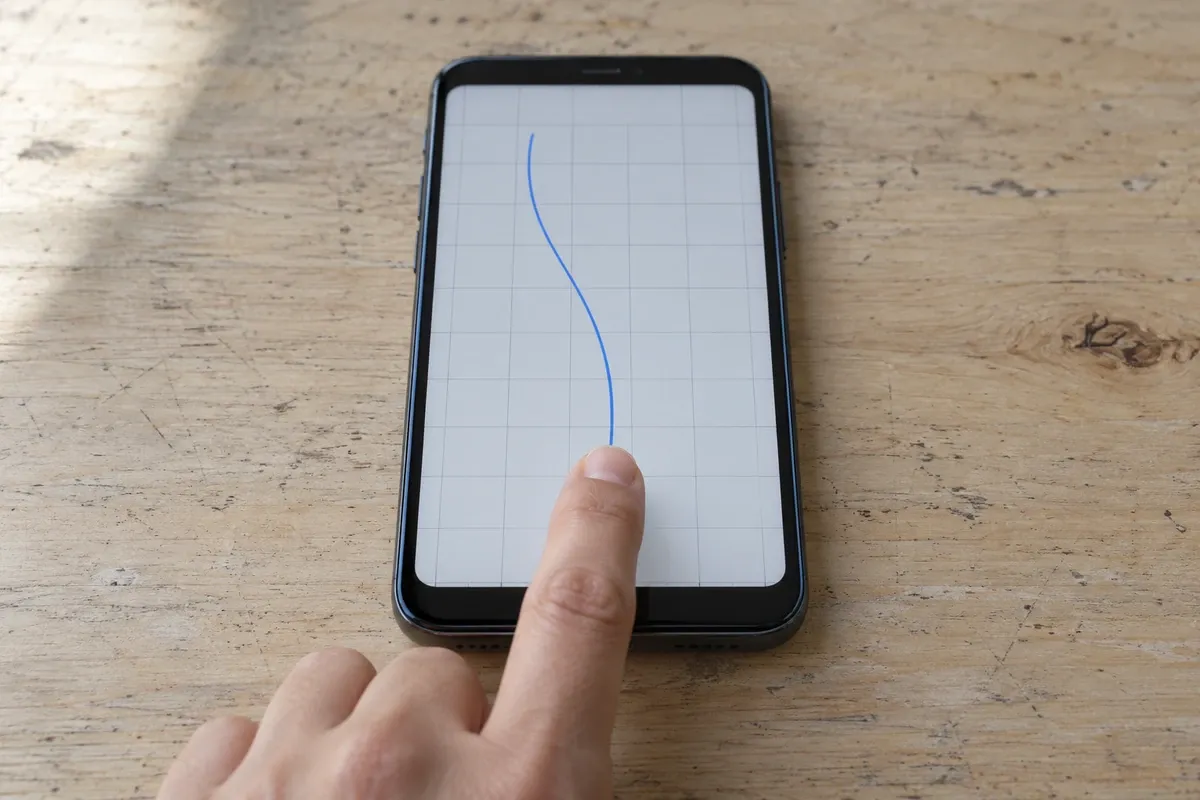
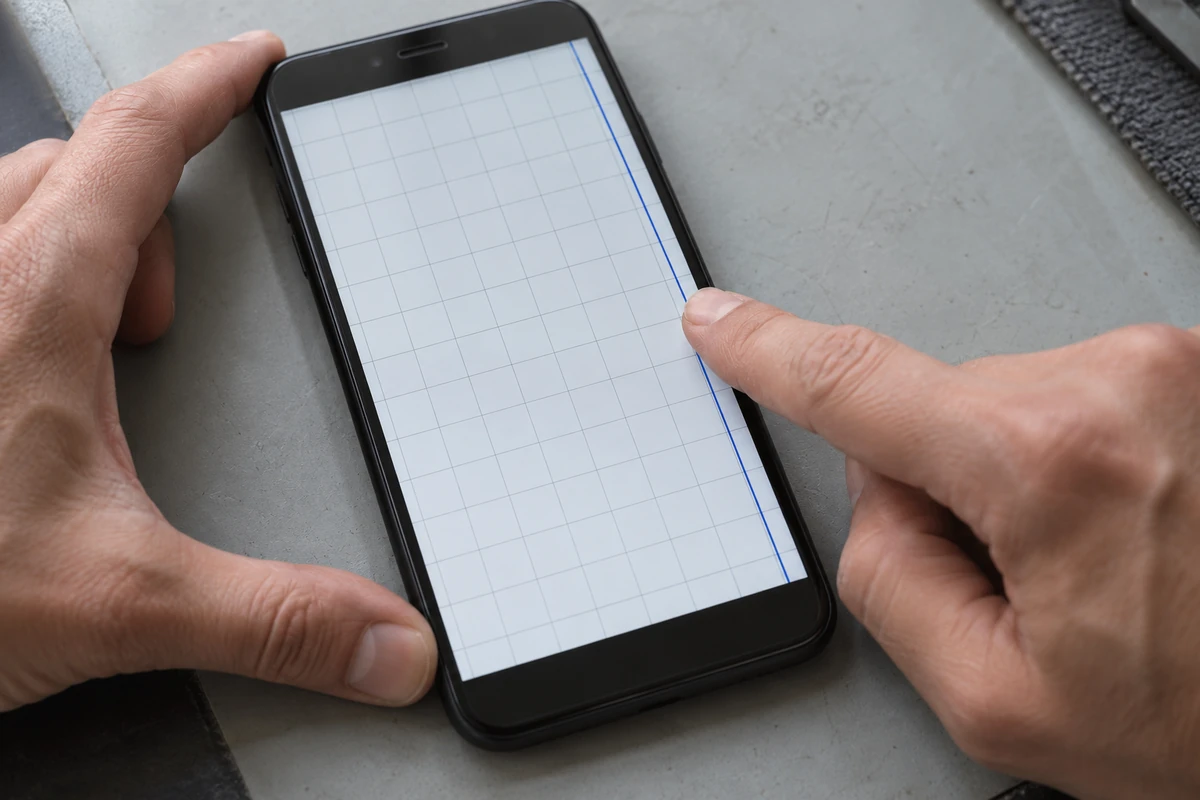
Use deliberate physical strokes to cover the defined canvas, then revisit any interruption. A single diagonal or centre swipe leaves the rest of the stated area unresolved.
For a suggested operator sequence, sweep across successive horizontal regions, repeat vertically, and then trace the accessible perimeter and corners. Use normal contact, observe whether the path follows the finger, and release between separate strokes. This is a proposed screening sequence, not a manufacturer certification test.
When a line stops or jumps, note the position before repeating the stroke through that location from another direction. Retain both the first observation and the repeat. Also note a finger lift, notification, navigation action or app change that interrupted the attempt. If input was not available at a boundary, record the exclusion instead of colouring it complete.
For an edge symptom, record whether the operating system performed navigation or the test app retained the gesture. Repeat within the app’s reachable area and compare with the relevant device support instructions. An edge gesture routed away from the canvas has not demonstrated a defective edge sensor.
Keep visible glass damage in the cosmetic condition record, with a separate entry for the functional symptom, and verify panel authenticity separately using our OEM pull vs. aftermarket OLED screen detection guide. Neither a good-looking surface nor a marked grid establishes the state of an internal touch layer.
Takeaway: Repeat a suspicious location and preserve the observation, while recording any region the test cannot reach.
Track multi-touch contacts independently
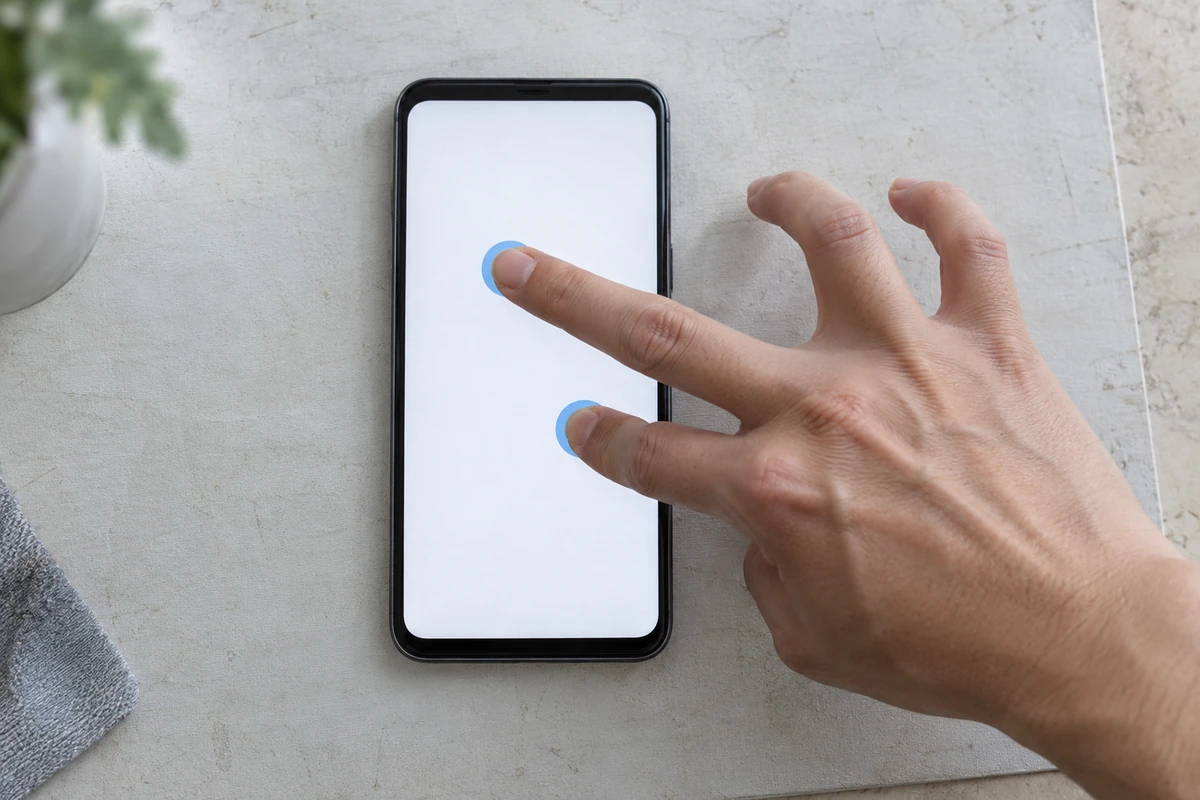
Test simultaneous contacts as their own task. Completing a single-contact grid does not document how the app follows multiple fingers during a gesture.
In Android’s documented event model, the first contact starts a gesture, additional contacts have pointer-down events, and contacts can move and lift separately. Pointer IDs remain associated with active contacts during that gesture, while their array positions can change. An app that treats the same array index as the same finger throughout can misrepresent a multi-touch trace.
Use this suggested check with two separated fingers; the choice is a screening example, not a claim about a handset’s maximum supported contacts.
| Physical action | Observation to retain | Question for the logger |
|---|---|---|
| Place a finger, then add another | Both actual contact positions and displayed traces | Are the active contacts independently identified? |
| Move them along separate paths | Position changes for each contact | Are samples associated with the correct persistent ID? |
| Lift one while leaving the other down | Which contact ended and which remained | Does the remaining trace continue under its own identity? |
| Place the lifted finger again | The new contact and ongoing contact | Is the new event recorded without joining unrelated paths? |
| Lift all fingers | End of the gesture | Are active contacts cleared? |
| Attempt the intended pinch or spread | App-level response and any cancellation | Is a failed gesture distinguished from lost coordinate reporting? |
For an Android logger, retain the corresponding event lifecycle:
| Event | Suggested state handling |
|---|---|
ACTION_DOWN |
Begin a new gesture and contact segment; record the first pointer ID |
ACTION_POINTER_DOWN |
Use getActionIndex() to identify the added pointer, then obtain its ID |
ACTION_MOVE |
Iterate active IDs and find their current indices; retain each contact’s available samples |
ACTION_POINTER_UP |
Use the action index to identify and end the departing contact segment |
ACTION_UP |
End the last contact and the gesture |
ACTION_CANCEL |
End all active contact segments as canceled; do not join the next gesture to them |
The API also documents FLAG_CANCELED, added in API level 33, for cancellation-related events including ACTION_POINTER_UP. Where available, retain that flag and distinguish it from an ordinary finger lift; it does not diagnose a hardware cause. Pair a pointer ID with its gesture and contact segment rather than treating the numeric ID as permanent across separate contacts. Record unavailable export fields explicitly.
A gesture’s visible response also depends on how the application interprets input. Record what the diagnostic view showed and what the operator physically did, rather than reducing every unexpected gesture to “digitizer failure.” For another contact count or fixture, use the relevant device and software documentation and retain the chosen procedure.
Store the multi-touch result under the same checked asset association used for the grid. The asset-event workflow explains why changing test outcomes belong in the device history without changing its identity.
Takeaway: Multi-touch screening needs separate contact histories, including additions, lifts and new gestures.
Separate ghost touch from an interrupted gesture
Look for unexpected input during a documented hands-off interval, and distinguish it from an interrupted intended contact. Here, “ghost touch” describes an observation of apparent input without intended physical contact; it does not name a proven fault cause.
With the phone stationary and hands clear of the active glass, record the observation interval and cable state. Retain any reported contact events or visible response and whether the app remained active. If the symptom was reported while charging, preserve that context; Apple’s guidance specifically suggests disconnecting accessories and trying a different outlet, cable or charger when removing an accessory resolves the issue.
| Observation | What it establishes | Suggested next action |
|---|---|---|
| No sample in an unswept cell | That cell was not sampled | Sweep it before making a touch decision |
| A break repeats at the same reachable location | A repeatable screening exception under the recorded conditions | Hold or retest according to your procedure; retain the trace |
| Gesture reports cancellation | The gesture was canceled at the application event layer | Check the event context; start a separate attempt |
| Unexpected contact while hands are clear | An unexpected-input observation | Save the conditions and follow device-specific troubleshooting |
| Issue changes after removing a protector or cable | Behaviour differed between the recorded setups | Keep both results and identify which setup the decision covers |
| Only a particular app shows the problem | An app-specific observation | Follow its support route and compare with another documented check |
Common mistake: A canceled Android gesture is recorded as proof that a touch electrode is broken. The documented ACTION_CANCEL describes cancellation; it does not supply the hardware root cause.
Put unresolved observations in the intake exception and disposition record. An absence of unexpected input during one observation interval is a bounded result, not a guarantee that an intermittent fault can never occur.
Takeaway: Preserve the symptom and its conditions before assigning a cause or a release decision.
Keep a result that another operator can review
Record the method, observations and disposition against the checked handset. A final “pass” label without its test scope cannot show what was actually screened.
| Record field | Suggested content |
|---|---|
| Device and session | Asset ID, observed device identifier, date, operator, model and OS |
| Test setup | App/version, physical input method, orientation, canvas and grid layout |
| Conditions | Screen damage/cleanliness, protector/case, cable state, relevant settings |
| Coverage | Saved sample/trace evidence, visited and unvisited regions, excluded areas |
| Exceptions | Location, stroke direction, repeats, releases and cancellations |
| Multi-touch | Contact sequence, independent traces, lifts and gesture observations |
| Hands-off interval | Start/end, app state, unexpected events and accessory state |
| Retest | Changed condition, repeated sequence and separately retained result |
| Disposition | Screened under stated procedure, retest, hold or not tested; decision owner |
These are suggested fields, not a requirement to expose identifiers publicly. Keep evidence in your approved internal record. Where the software cannot export the required detail, record that limitation and retain the available observation; do not infer raw coordinate samples from a static screenshot.
Agree how incomplete tests are handled before the batch starts. A protected or locked device, an inaccessible region, or an interrupted session can leave a required check unresolved. Mark that explicitly. A repeatable abnormal observation can justify referral for further assessment without naming an unsupported repair diagnosis.
Return to the whole-handset inspection sequence for account locks, other functions and final disposition. Touch evidence belongs beside those checks rather than replacing them.
Takeaway: Another operator should be able to identify the unit, reproduce the setup and understand why the decision was made.
When this does not apply
This is app-level functional screening, not a raw sensor inspection or a repair qualification. Use a separate documented process when the task requires internal fault isolation, electrical measurements or approval of a replacement part.
- A grid gap does not locate a microcrack, identify a connector fault or distinguish every possible hardware and software cause.
- Sampled cell coverage does not establish continuous sensitivity at every point between samples.
- Visible trace lag is not a measured touch latency. This procedure specifies no timing instrumentation or latency limit.
- Device-specific menus, physical fixtures and diagnostic apps need their own model/OS support evidence.
- A missing or unsafe-to-run test stays unresolved; this guide is not permission to reset, open or continue operating a device.
- A changed app, orientation, protector or accessory changes the context to record in the affected retest.
Consult the agreed grade descriptions for cosmetic classification. Touch screening neither grants an ownership check nor makes a phone’s overall resale condition acceptable.
Takeaway: Use this record for its stated screening scope and seek separate evidence for hardware causes or broader acceptance.
Method and sources
This guide uses public Android event documentation and Apple/Google device-support instructions, accessed October 9, 2026. The Android API descriptions support the event terminology; they do not validate a particular diagnostic app. The support articles supply device-specific troubleshooting context, without establishing a universal repair outcome.
The coverage rules, physical sequence, decision table, and record fields provide a standardized receiving template. The editorial policy and fact-checking policy describe the approach to public-source guidance.
Takeaway: Use official documentation to understand the signals and your own recorded observations to make the unit’s decision.
Continue the inspection after recording touch
Resolve an uncertain device association before applying this result to a handset. Then record any incomplete or abnormal touch check for its designated reviewer. Once that decision is documented, continue the remaining lock, function and condition checks rather than letting a touch result stand for the entire inspection.
Takeaway: Close the touch record with its scope and disposition, then continue the remaining intake tasks.
Frequently asked questions
How to fix dead zone touch screen?
Start with the relevant device's support steps and preserve the original symptom. A repeatable unresponsive area after a documented retest warrants service assessment; this grid procedure does not identify the failed part or prescribe a repair.
What is the secret code to test the mobile touch screen?
Use the manufacturer's published instructions for the actual model and OS; dial codes and built-in diagnostic menus vary by manufacturer, model, and firmware build. Record the test menu or app used and its reachable input area, so a different menu is not assumed to provide the same test.
Is there a way to test touch screen?
Use a documented diagnostic view that records physical touches, then retain the tested area and incomplete regions. For receiving work, a saved per-unit result is more useful than an unrecorded visual check or a generic completion badge.
How to test iPhone screen for dead spots?
Use a suitable documented touch diagnostic for the device and retain where physical strokes were attempted. Android event names in this article are logger examples, not iPhone APIs. Follow Apple's support steps for intermittent response and seek service when the issue persists.
Why does ghost touch happen on phones?
Unexpected input can have different explanations. Apple's support guidance calls for checks of screen condition, cases or protectors and connected accessories. Describe which conditions changed the symptom; a hands-off event alone does not identify its cause.
Does a screen replacement fix ghost touch?
A replacement is not an outcome established by this screening record. Have the repeated symptom assessed through the relevant service process before choosing a part. Preserve the original and retest evidence so an apparent improvement is compared under documented conditions.
How to test Ghost Touch on iPhone?
Record the app, observation interval and accessory state while hands stay clear of the glass. Retain unexpected input and repeat after the applicable Apple support checks. This is a suggested observation method, not an official Apple certification test.
How to help ghost touch?
Follow the device's support instructions, record changes and seek its service route if the symptom continues. For intake, keep an unresolved required check on hold rather than rewriting it as a pass after an incomplete observation.
Sources
- MotionEvent: coordinates, pointer identity and batched samples — Android Developers Accessed October 9, 2026.
- Handle multi-touch gestures — Android Developers Accessed October 9, 2026.
- Instrumentation: sendPointerSync — Android Developers Accessed October 9, 2026.
- If the screen isn't working on your iPhone or iPad — Apple Support Accessed October 9, 2026.
- Fix touch and response issues on your Pixel screen — Google Pixel Phone Help Accessed October 9, 2026.