A missed biometric fault risks releasing a resale handset that fails an expected unlock function. Screen Face ID and under-display fingerprints by recording enrollment, actual biometric unlock, available official diagnostics and repair status separately. This guide supplies a non-invasive check and per-unit record to use within the phone intake and diagnostic workflow.
To test Face ID and fingerprint hardware in a bulk receiving process, record what each handset actually does under supported conditions. Confirm legitimate access, the model and software, then distinguish successful setup from successful authentication. Retain the exact warning and relevant part-history label alongside those observations. A working selfie camera, visible infrared output or a generic diagnostic pass badge does not establish an intact original matched chip. Use the records below to separate an observed pass, an observed failure and a check that remains blocked, with acceptance governed by your written purchase terms.
| Input or item | Typical value or source | Why it matters |
|---|---|---|
| Actual model and OS | Device settings and manufacturer documentation | Determines feature, menu and diagnostic availability |
| Biometric technology | Official specification for that model | Separates Face ID, optical fingerprint and ultrasonic fingerprint checks |
| Test access and setup | Authorized device access and permitted temporary enrollment | Establishes whether the intended function can be attempted |
| Display and accessories | Observed glass, protector, case and cleanliness | Makes changed retest conditions traceable |
| Acceptance rule | Your written required-function and exception policy | Prevents missing evidence being counted as a pass |
What must be identified before a biometric test?
Identify the handset, software, documented sensor type and permitted test method before interpreting a result. Legitimate access to settings and authorization to enroll a test biometric are prerequisites for this proposed check. If either is unavailable, record the blocked step and its reason instead of substituting an assumed pass.
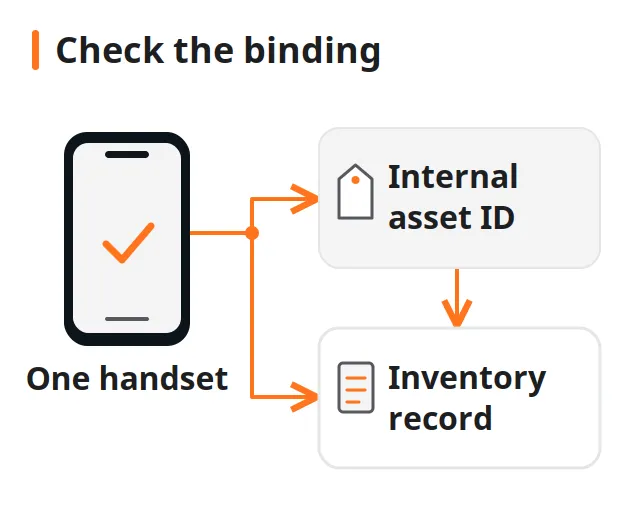
Bind the physical unit to its record using the device-to-record asset-tagging procedure. Keep the model and OS/build with the diagnostic app or suite name and version. A report whose device association is uncertain cannot support a receiving decision about that unit.
The technologies require different evidence:
| Function | Manufacturer-described principle | Useful receiving observation |
|---|---|---|
| Apple Face ID | Depth information and an infrared face image are compared with enrolled facial data | Authorized enrollment and actual Face ID unlock; supported sensor diagnostics recorded separately |
| Optical under-display fingerprint | Light-based fingerprint sensing | Enrollment and unlock with the enrolled finger, under documented screen conditions |
| Ultrasonic under-display fingerprint | Acoustic sensing of fingerprint ridges and valleys | Enrollment and unlock using the actual device prompts and documented contact conditions |
Apple’s Face ID technology explanation, published September 18, 2026, describes the depth/infrared comparison. Qualcomm’s February 19, 2019 technical explanation distinguishes ultrasonic pulses from light-based optical sensing. Those principles do not identify the sensor in an unspecified phone; confirm that from its own documentation.
The editorial policy explains the source-based approach used here: manufacturer descriptions and proposed receiving decisions are kept distinct. Before starting, capture available repair messages and visible obstruction or damage. Decide which required functions your receiving policy expects to observe. If a lot description merely says “biometrics tested,” clarify the supported tests and unavailable-result handling using the guide to reading a phone-lot description.
Takeaway: Define the unit, supported function and authorized method before assigning a biometric outcome.
How should Face ID be screened at intake?
Check Face ID setup, the intended unlock setting, camera obstruction and the device’s security state before judging a failed attempt. Record enrollment and unlock independently, then retain any available official Face ID diagnostic result. A selfie image and a biometric authentication attempt examine different functions and need separate results.
Use this suggested receiving sequence with the actual model’s Apple Face ID support instructions, published September 17, 2026:
- Preserve the starting state. Record exact alerts and available part-history entries before changing settings. Check whether Face ID is configured and enabled for the intended use.
- Control visible obstructions. Check for a smudge, case or protector covering the TrueDepth camera. Keep the face unobstructed and follow the model’s position/orientation prompts; some sunglasses can block the infrared light used by the camera.
- Record enrollment. Where authorized, attempt setup with the intended operator. Record completion, inability to progress or the exact displayed error. Keep permission to reset existing enrollment distinct from permission merely to inspect the device.
- Record actual unlock. After setup, attempt the enrolled Face ID unlock in the applicable security state. If a restart requires legitimate passcode entry first, record that state and the subsequent attempt separately.
- Add supported diagnostics. If the official Face ID suite is available for the model/software, save its name and actual result as another observation. If unavailable, retain that limitation in the record.
Apple’s technology documentation says a passcode is required after restarting and in other security states. A passcode prompt therefore needs context before it becomes a failure label. Keep a failed biometric attempt separate from a state in which the OS has not yet permitted biometric authentication.
Why a selfie or an infrared view cannot clear Face ID
Apple’s iPhone X introduction, dated September 12, 2017, named a flood illuminator, dot projector and infrared camera. These historical component names explain the structured-light concept; they do not supply a component-location map for every later handset. Face ID’s documented path uses captured depth and infrared information compared with enrolled facial data.

For an infrared camera or dot projector check, external-camera visibility is only an observation. Apple says some cameras can detect TrueDepth infrared output; the cited support document supplies no external-camera brightness, dot-count or timing acceptance threshold. Do not translate visible light into “Face ID passed” or its absence into a confirmed failed projector.
Apple’s camera troubleshooting documentation, published September 22, 2026, separates camera-quality checks, Mobile Resource Inspector and the Face ID diagnostic suite. Its diagnostics availability table is model-dependent. Save the test actually offered and performed rather than assigning every handset the same suite coverage.
Common mistake: A selfie or app badge is used to clear a failed Face ID setup. Preserve the failed function and the separate camera result; neither explains which internal component needs attention.
If enrollment or unlock remains unavailable after applicable support checks, retain the symptom for service assessment. Keep that functional exception beside, rather than inside, the cosmetic grade description.
Takeaway: A useful Face ID screen records setup, permitted unlock and available diagnostics without turning observations into a chip diagnosis.
How should optical and ultrasonic fingerprints be checked?
Follow the handset’s enrollment and unlock prompts, using the enrolled finger and recording the glass, protector and finger conditions. Optical and ultrasonic sensing differ, but both require an observed functional result. A controlled retest changes a documented condition while preserving the first observation, so an apparent improvement can be explained.
Start with the actual manufacturer’s guidance rather than a universal pressure, location or test duration. Samsung’s fingerprint guide separates registration, checking added fingerprints and unlock, with model/software variations. Google’s under-display troubleshooting applies to Pixel 6 and later, excluding Pixel Fold; record that scope when using its advice.
| Condition to record | Supported check | How to preserve the retest |
|---|---|---|
| Display surface | Inspect cleanliness, scratches and visible damage | Record the original glass condition and any cleaning performed |
| Protector or case | Check the applicable manufacturer’s compatibility and obstruction guidance | Retain whether the accessory changed and which one was used |
| Enrolled finger | Use the finger associated with the recorded enrollment | Record enrollment changes separately from unlock attempts |
| Finger contact/condition | Follow the device prompt; Samsung discusses dry and overly wet fingers | Note the surface or moisture condition addressed during the retest |
| Lighting for applicable Pixel guidance | Check whether bright light interferes | Record a changed lighting condition alongside the new result |
The Google and Samsung troubleshooting pages, accessed October 10, 2026, support these checks. Sensor-level marketing about operation with wet or dirty fingers does not replace the handset manufacturer’s support conditions.
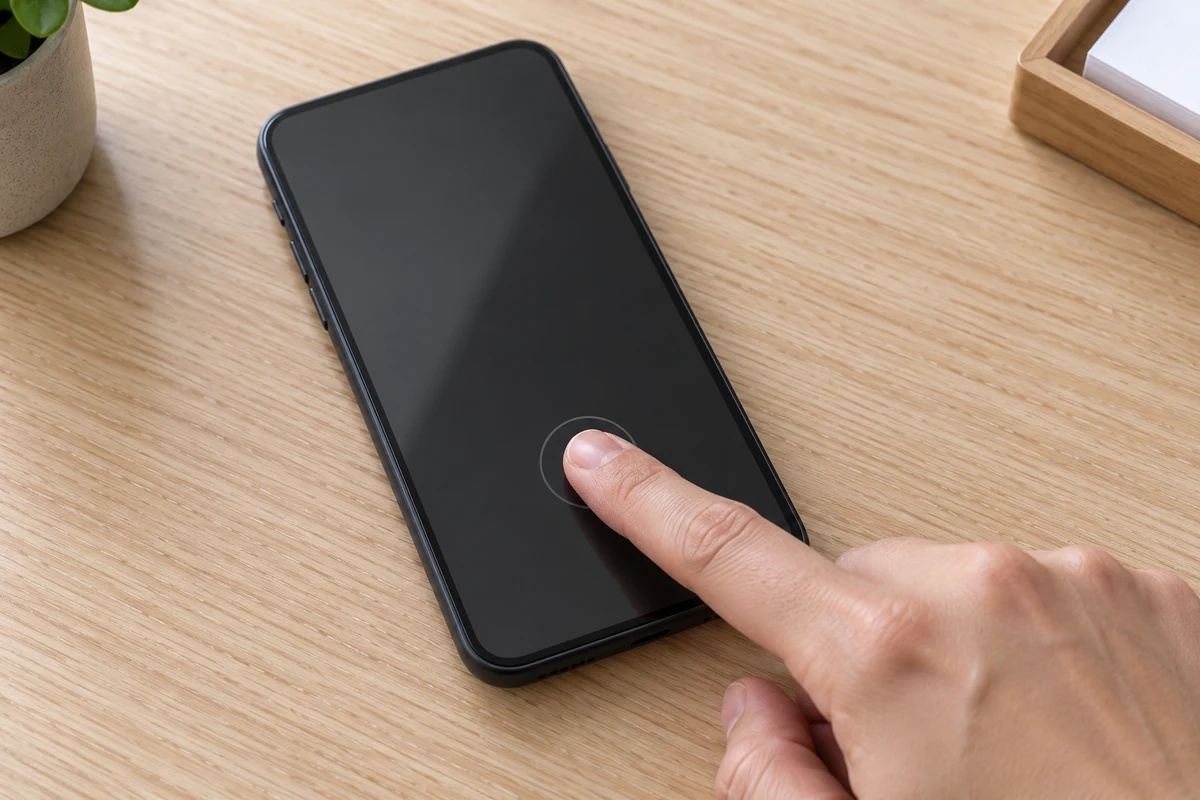
Attempt enrollment where authorized, then confirm that fingerprint unlock is enabled according to the actual model/OS documentation. Samsung’s fingerprint guide, accessed October 10, 2026, requires the Fingerprint unlock switch to be on and explains that a restart can require a PIN, password or pattern first. If the system requires those credentials, record the state and complete the authorized credential entry before separately attempting unlock with the enrolled finger. Until the system permits fingerprint authentication, record the check as blocked / not tested rather than a sensor failure; follow the actual model’s security conditions.
Preserve the outcome of enrollment and unlock separately even when one succeeds. Record a missing setting or an inaccessible setup as its own observation. A touch response at the same point on the display is a separate input check; use the touch-grid and multi-touch screening guide for that task.
Enrollment and repair calibration are different
Enrollment registers a biometric reference for authentication. In-display fingerprint sensor calibration belongs to the manufacturer’s documented repair-completion process when applicable. Google’s Pixel repair guidance points to diagnostics and its Under-Display Fingerprint Sensor adjustment/software tools. Confirm the actual model’s manual and tool requirements before treating a repair as complete.
Common mistake: Re-enrolling a finger is recorded as calibration of a replaced sensor. Save the enrollment result and any documented repair-completion evidence in separate fields.
Where recognition still fails after applicable support checks, retain the unresolved result and refer for service assessment under your receiving procedure. Do not attribute the failure to an optical-versus-ultrasonic design difference without model-specific evidence.
Takeaway: Compare first and retest observations under stated conditions, and keep repair calibration separate from fingerprint enrollment.
What do paired-part and repair messages actually mean?
Record each exact repair label beside the part it describes, then interpret it using the applicable model and software documentation. Functional performance and repair history answer separate questions. An Unknown, Used or unfinished-repair message cannot, by itself, identify a failed matched chip or establish whether the required biometric function works.
Apple’s Parts and Service History guidance, published July 7, 2026, describes history under iOS 15.2 and later, with part coverage varying by model. Its table includes front-camera history for iPhone 12 models and later. Only the most recent service appears when a part has been serviced repeatedly.
| Observation | Documented meaning or boundary | Receiving action proposed here |
|---|---|---|
| Genuine | Repair used genuine Apple parts and processes | Retain label and perform the required functional check |
| Used | Part was previously used or installed in another iPhone | Retain reuse status separately from enrollment/unlock |
| Unknown | Several possibilities: nongenuine, unexpected function, verification/linking incomplete, or modified/unverifiable part | Save exact part/label; seek clarification without choosing a cause |
| Unverified | Apple’s explanation concerns a replaced or previously used logic board | Preserve the relevant part; avoid a biometric-specific interpretation |
| Finish Repair | Applicable repair calibration remains unfinished | Record incomplete repair and any unavailable biometric function |
| Face ID Issue / disabled alert | Manufacturer-detected issue or a front-camera state needing attention | Preserve wording and apply support/service guidance |
| No relevant history shown | Displayed history depends on model, software and service record | Record availability; do not certify original hardware |
Apple’s front-camera guidance, published January 13, 2026, says Face ID cannot be used until the applicable calibration process is complete. It also lists several possible reasons for a Face ID Issue message. Repair Assistant guidance, published September 21, 2026, describes calibration data and device/part requirements; a required step that cannot be completed remains an exception for the appropriate service route.
Replacement does not have one universal outcome. The front-camera guidance specifically permits reuse from the same iPhone model on iPhone 16 and later, with Used shown after completed repair calibration. Keep that part/model condition attached to the statement rather than extending it to every biometric component.
A TrueDepth issue alert can indicate that laser functions were disabled for safety after a malfunction or damage. Preserve the alert and use the documented service route. Component replacement, part pairing, and laser-safety servicing must follow the manufacturer’s authorized repair documentation.
Common mistake: “Unknown” becomes “counterfeit biometric chip,” or “Used” becomes “failed Face ID.” Retain the manufacturer’s label and the actual functional observation as independent evidence.
Takeaway: Treat part labels as documented status information, with the relevant model and part, rather than as a chip-originality test.
What should a per-unit biometric record contain?
Retain the initial result, the condition changed for any retest and the resulting observation against the same physical unit. Use separate fields for enrollment, authentication, diagnostics and repair status. Your receiving policy then decides disposition; an unavailable required check remains unresolved even when other tests on the handset passed.
Copy this suggested record into the existing unit file. It is an editorial template rather than a manufacturer acceptance standard. Keep the unit and shipment reference consistent with the receiving and tally record.
| Record field | Fill in |
|---|---|
| Unit and method | Batch/unit reference: ___; model: ___; OS/build: ___; documented sensor type: ___; operator/date: ___; app or suite/version: ___ |
| Starting conditions | Glass/protector/case: ___; obstruction: ___; finger or lighting condition: ___; restart/passcode state: ___ |
| Enrollment | Authorized/available: ___; attempted: ___; completed/failed/blocked: ___; exact symptom: ___ |
| Authentication | Intended function: ___; biometric attempt permitted: ___; attempted: ___; observed outcome: ___ |
| Official diagnostics | Suite available: ___; name/version: ___; performed/result: ___; evidence reference: ___ |
| Repair evidence | Relevant part/history availability: ___; exact label/warning: ___; documented calibration state: ___ |
| Retest | Initial observation: ___; changed condition: ___; new observation: ___; unresolved step: ___ |
| Disposition and cleanup | Decision/reason under intake terms: ___; responsible person: ___; temporary-enrollment cleanup: ___; retained log/screenshot reference: ___ |
The fact-checking policy explains evidence handling; keep this blank recording template distinct from a completed test report. Save status screenshots or diagnostic logs without raw biometric templates or identifying face/fingerprint imagery. Plan removal of authorized temporary enrollment before handoff. Apple states that apps receive authentication-success information, not enrolled Face ID data; do not expect an app export to contain that protected biometric reference.
| Suggested outcome | Evidence basis | Disposition under your written procedure |
|---|---|---|
| Observed pass | Required functional observations completed under stated conditions | Apply the remaining intake checks and relevant purchase terms |
| Observed failure | Required function was attempted and did not complete or authenticate | Preserve symptom, controlled retest and service/hold decision |
| Blocked / not tested | Access, setup, suite or another prerequisite prevented the required observation | Keep pending; name the missing evidence or prerequisite |
| Not applicable | The actual model lacks the specified function | Record the model-based reason, rather than a biometric pass |
For example, an enrollment that completes while unlock remains untested belongs in two different fields. A later successful unlock after a recorded change should not erase the first observation. A batch total may summarize these outcomes, but the unit records remain the basis for resolving exceptions.
Takeaway: Preserve each functional result and its conditions before applying a receiving disposition.
When this does not apply
This guide applies to supported Face ID and under-display fingerprint functions with legitimate access and permission to perform the check. It does not establish chip originality, diagnose internal components or complete repairs. Where a required prerequisite is missing, preserve a blocked result and use the appropriate authorized support or service route.
- Other face-unlock systems, physical-button Touch ID and side/rear fingerprint sensors require their own documentation; their presence does not make them equivalent to the functions described here.
- A locked device or an unauthorized enrollment change prevents the relevant check. Do not bypass account locks, part locks or pairing restrictions.
- External infrared views and camera images do not supply a validated acceptance threshold for a projector, flood illuminator or infrared camera.
- A functional pass does not prove factory-original matched chips, future reliability, security certification or the cause of a previous repair alert.
- The source documents establish no universal pass rate, attempt count, test duration, sampling plan or all-model calibration procedure for this receiving proposal.
Takeaway: Keep unsupported, unauthorized and unresolved checks visible instead of expanding the meaning of a pass.
Frequently asked questions about repair and setup exceptions
Missing settings, unavailable calibration tools and incomplete enrollment need a specific record of what could not be done. The questions below reflect public reader concerns about repair and setup exceptions; answers use manufacturer documentation. A reported screen change or software event supplies context, but does not establish the cause of a fault.
Why does the Pixel calibration tool say it cannot find unique software?
That message establishes a tool failure, not the condition of the sensor. Record the model, tool message and attempted repair-completion step. Google’s official repair guidance identifies the supported route; keep calibration pending until the appropriate process resolves the blocker.
What if fingerprint or face-unlock settings disappear after a display change?
Record the missing option and leave the relevant functional check blocked. Confirm model/software support and the applicable manufacturer’s repair guidance. Missing menus alone do not prove that both sensors failed; separate what was inaccessible from any function that was actually attempted.
Is a claimed calibration enough if the fingerprint option remains missing?
No; a repair-completion claim and an unavailable functional test are different records. Preserve the available calibration evidence, then record that enrollment or unlock could not be attempted. Resolve the missing option through the documented support route before clearing a required biometric check.
What if the available computer cannot complete Pixel calibration?
Record the computer/tool blocker and keep repair completion pending. Use Google’s documented requirements or an appropriate service route. A computer limitation does not justify an unsupported calibration method, and successful enrollment elsewhere should not be substituted for repair-completion evidence.
Should a replacement screen be accepted if fingerprint enrollment fails?
An expected biometric function remains unresolved when enrollment cannot complete. Apply the receiving terms after the applicable Pixel fingerprint checks, retaining the failed setup and any changed-condition retest. This symptom alone does not identify which replacement part or repair step caused it.
What if Face ID enrollment keeps asking for a face in the frame?
Persistent inability to progress can require service after applicable support checks. Apple’s Face ID troubleshooting addresses that setup symptom. Retain the exact prompt and conditions, then route the unresolved function for assessment rather than naming an internal failed part.
Can a working selfie camera clear a failed Face ID setup?
No; save the camera success and the Face ID setup failure separately. Apple documents depth/infrared authentication and distinct camera and Face ID checks. A usable front-camera image therefore does not resolve the failed enrollment or provide evidence that the full biometric path works.
Takeaway: Resolve the missing step with supported evidence rather than inferring a pass from another operation.
Related reading
Use the next guide for the receiving task that remains open in the unit record. The workflow guide organizes the overall intake decision, the asset-tagging guide keeps evidence attached to the handset, and the touch guide addresses a separate display-input function. None replaces the biometric observations required by your procedure.
- Phone intake and diagnostic workflow — Place the biometric exception alongside lock, other functional and grading results.
- Barcode scanning and asset tagging — Keep the physical handset bound to its logs and retest record.
- Touch-grid and multi-touch screening — Investigate touch-response observations separately from fingerprint recognition.
Takeaway: Carry the biometric record into the wider intake decision without replacing other required checks.
Method and sources
This guide compiles public manufacturer documentation into a structured receiving record and decision process. Manufacturer descriptions define the technical distinctions and calibration requirements, while the record fields, controlled-retest approach, and dispositions structure intake workflows under your written purchase procedures.
Sources were reviewed on October 10, 2026. The source list below provides the original Apple, Google, Samsung and Qualcomm documents. Historical iPhone X and Qualcomm descriptions explain principles rather than establish current all-model specifications. Model-specific support requirements take priority when applying the proposed checks.
The FAQ concerns came from public Google Pixel Community and Apple Support Community posts about missing settings, calibration blockers and enrollment failures. Community reports identify questions; they are not evidence of causes, prevalence or repair success. No diagnostic-vendor feature list is treated as a validated performance result.
Read the AI-use policy for assistance disclosures. Copy the unit record into your own intake checklist and retain unresolved required checks for documented follow-up.
Last substantive update: October 10, 2026.
Takeaway: Use this public-source synthesis as a recording aid, with current model documentation and your own acceptance terms.
Sources
- About Face ID advanced technology — Apple Accessed October 10, 2026.
- If Face ID isn't working on your iPhone or iPad Pro — Apple Accessed October 10, 2026.
- If an alert says Face ID has an issue — Apple Accessed October 10, 2026.
- iPhone Parts and Service History — Apple Accessed October 10, 2026.
- About genuine iPhone front cameras — Apple Accessed October 10, 2026.
- Use Repair Assistant to finish an iPhone or iPad repair — Apple Accessed October 10, 2026.
- iPhone Troubleshooting Camera Issues — Apple Accessed October 10, 2026.
- Apple Diagnostics for Self Service Repair — Apple Accessed October 10, 2026.
- The future is here: iPhone X — Apple Accessed October 10, 2026.
- Fix issues with your fingerprint sensor on your Pixel phone — Google Accessed October 10, 2026.
- Repair your own Pixel device — Google Accessed October 10, 2026.
- Use the fingerprint sensor on your Galaxy phone or tablet — Samsung Accessed October 10, 2026.
- Troubleshoot fingerprint recognition issues on your Galaxy phone — Samsung Accessed October 10, 2026.
- Qualcomm 3D Sonic Sensor technical explanation — Qualcomm Accessed October 10, 2026.